Jump to a section
UAE e-invoicing update: 19 October 2026
The Ministry of Finance has announced Ministerial Decision No. 197 of 2026, effective from 1 October 2026. It temporarily excludes transactions between members of the same Tax Group for 24 months from 1 January 2027, replaces the UAE-location requirement for storing e-invoice data with a requirement to retain and provide the records to the FTA, and repeals the former two-business-day system-failure notification provision. These changes affect the compliance design around the software setup described below.
Businesses should confirm whether these amendments apply to their transactions and records. The phased implementation dates and ASP-appointment deadlines should be checked separately. Read the Ministry of Finance announcement.
Zoho Books UAE e-invoicing setup involves more than switching on a feature. Your organisation must have the correct business and tax details, complete the ASP onboarding process through EmaraTax, prepare its customer and item records, and establish a reliable process for sending and receiving electronic invoices.
This practical guide explains the configuration screens and the finance workflow, from appointing Zoho as your Accredited Service Provider to checking invoice status and reviewing received bills. It draws on the Zoho webinar demonstration reviewed for our illustrated guide, with official references for the current regulatory and product position.
Quick answer: verify your company details in Zoho Books, select Zoho Software Trading LLC through EmaraTax, complete the connection in Zoho Books, prepare the relevant master data, and review an invoice before submitting it through Peppol. Check the final e-invoice status and UUID after submission.
Updated: 6 October 2026. Screens are examples; menu labels and available fields may vary with your organisation and product version.
What is UAE eInvoicing in Zoho Books?
In the webinar, eInvoicing is presented as structured invoice data exchanged through the Peppol network. PINT-AE is the UAE invoice specification, using XML based on UBL 2.1. The invoice may also have a PDF preview for people to read, but the electronic exchange is a separate process.
Sending an ordinary invoice PDF by email does not, by itself, complete that structured exchange. The important operational questions are whether the required data has been submitted, whether validation succeeded, and whether the transaction has a successful e-invoice status.
Zoho Software Trading LLC is listed as an accredited eInvoicing service provider. Its role is distinct from that of your accountant: the ASP supports the exchange, while your finance team remains responsible for the accuracy of the business transaction and accounting records. See Zoho’s explanation of its UAE ASP service.
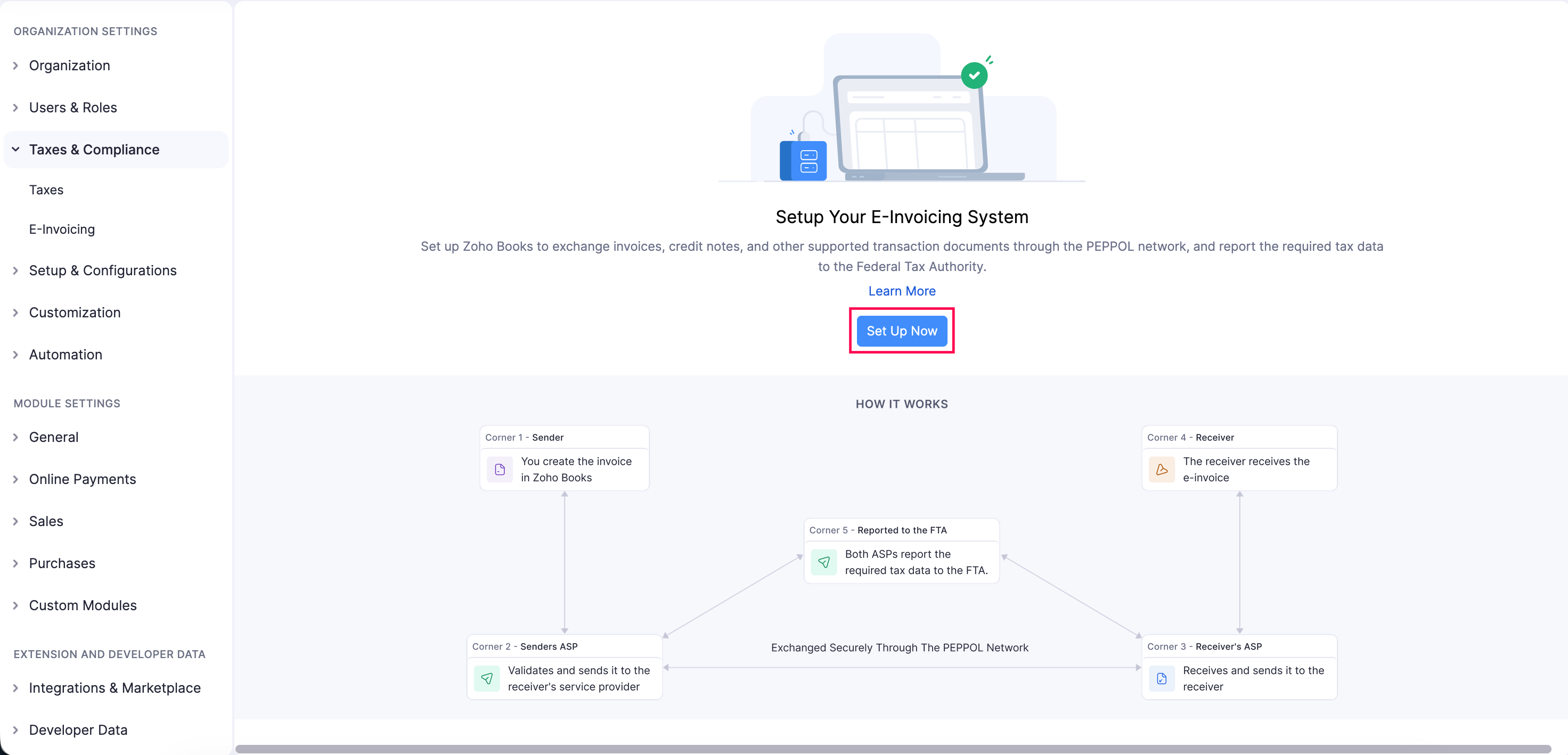
How the five-corner model works
- Supplier: prepares invoice data in its accounting system.
- Supplier’s ASP: validates and transmits the data.
- Buyer’s ASP: receives and verifies the electronic invoice.
- Buyer: receives the transaction in its accounting system.
- FTA: receives the relevant tax reporting through the provider side of the exchange.
The webinar demonstrates this using two Zoho organisations: an invoice is created in the sending organisation and appears as a bill in the receiving organisation.
UAE eInvoicing deadlines: ASP appointment and go-live
ASP appointment and mandatory implementation have different dates. Plan for both milestones.
| Category | Appoint an ASP by | Mandatory implementation |
|---|---|---|
| Revenue equal to or above AED 50 million | 30 October 2026 | 1 January 2027 |
| Revenue below AED 50 million | 31 March 2027 | 1 July 2027 |
| Government entities | 31 March 2027 | 1 October 2027 |
The pilot and voluntary implementation phase began on 1 July 2026. The large-business ASP appointment deadline was extended from 31 July to 30 October 2026, while the January 2027 implementation date remained unchanged. Refer to the MoF amendment announcement and the implementation decision, read with its later amendments.
B2C transactions are excluded under Article 5 of that implementation decision until a later ministerial decision determines otherwise. Assess your actual transaction scope and applicable exceptions instead of treating every invoice or every business as identical.
Before setup: prepare your business and accounting data
Collect the information before starting the connection process. A finance team that can create ordinary invoices may still need to update its legal identifiers, addresses and item classifications for electronic exchange.
- Registered business name and applicable tax identifiers.
- TRN and TIN information from the organisation’s official records.
- Registered address, emirate and contact details.
- The email registered with the FTA and authorised EmaraTax access.
- Customer and vendor identities, applicable tax treatments and routing information.
- Goods or service classifications, units, unit codes and tax settings.
- A person responsible for reviewing invoices before submission and monitoring errors afterwards.
Zoho’s current help page states that taxes must be enabled and a TRN entered before its e-invoicing setup. Confirm the available feature and commercial terms for your organisation before proceeding. A software prerequisite should not be treated as a complete explanation of the legal scope for every business.
How to set up UAE eInvoicing in Zoho Books: step by step
Step 1: Open the e-invoicing settings
Open Settings > Taxes & Compliance > E-Invoicing. Start the setup workflow. Check that you are working in the correct organisation before changing company details or beginning portal registration.
Step 2: Verify the registered company and tax details
Enter or verify the registered business name, TIN and TRN. Review the organisation address and contact information against the company’s official records. These details become part of the information used by the exchange process.
Use the FTA Registered Email ID, rather than assuming that the email used for Zoho sign-in is the correct one. The webinar emphasises this distinction.
The demonstration also shows a choice between updating the address only in new transactions and updating it in existing and new transactions. Choose deliberately and consider the effect on historical transaction presentation. Read the terms, accept them and continue.
Step 3: Continue to EmaraTax
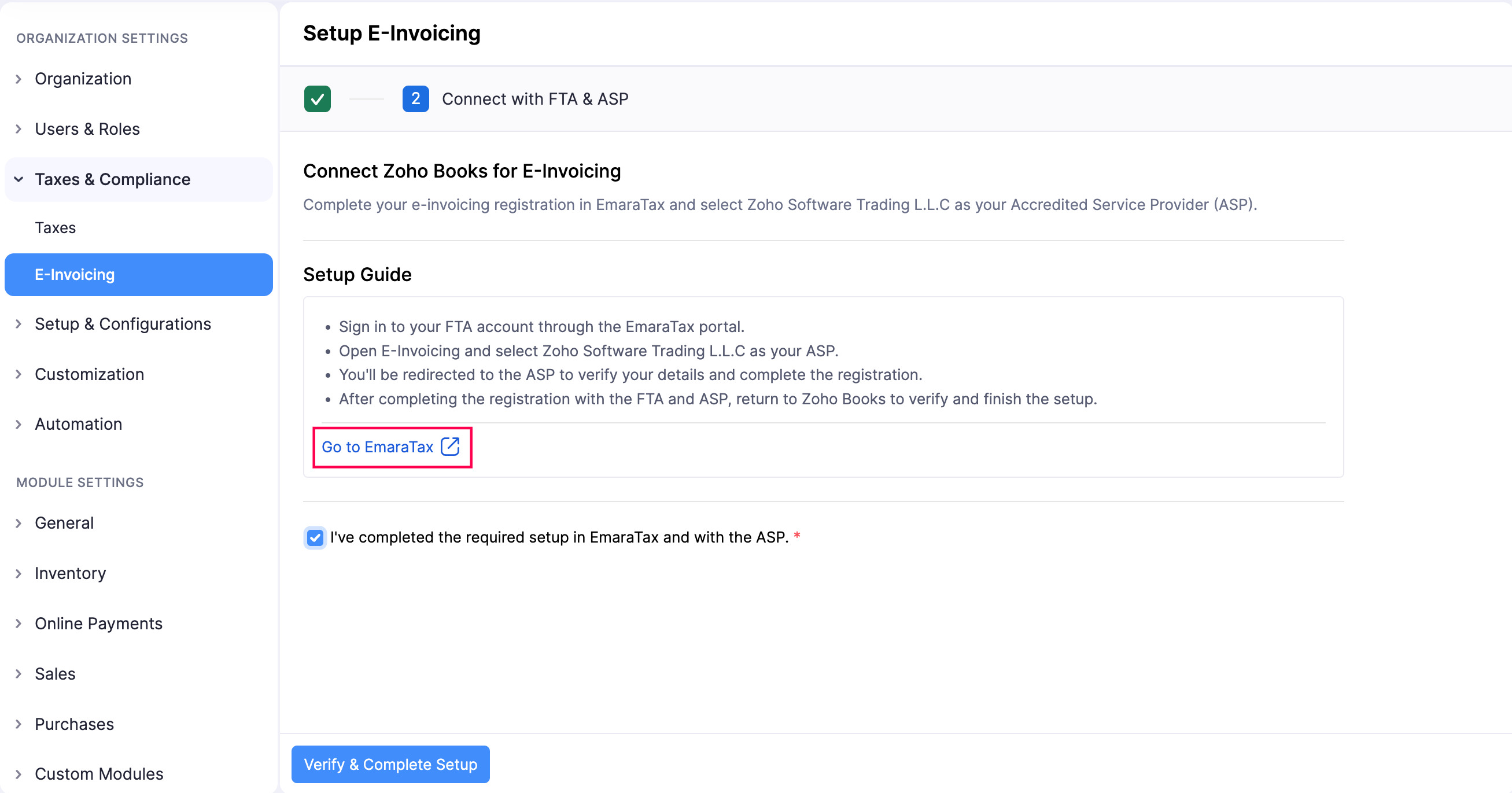
Use the link to EmaraTax from the setup workflow. Sign in using the authorised account for your business. Keep a note of the legal entity you intend to connect if the account manages multiple taxable persons.
Step 4: Select the correct taxable person
Open the required entity in EmaraTax. Verify the selected company’s information and complete the contact confirmation prompts that appear. Open the E-Invoicing service and read the portal instructions before confirming them.
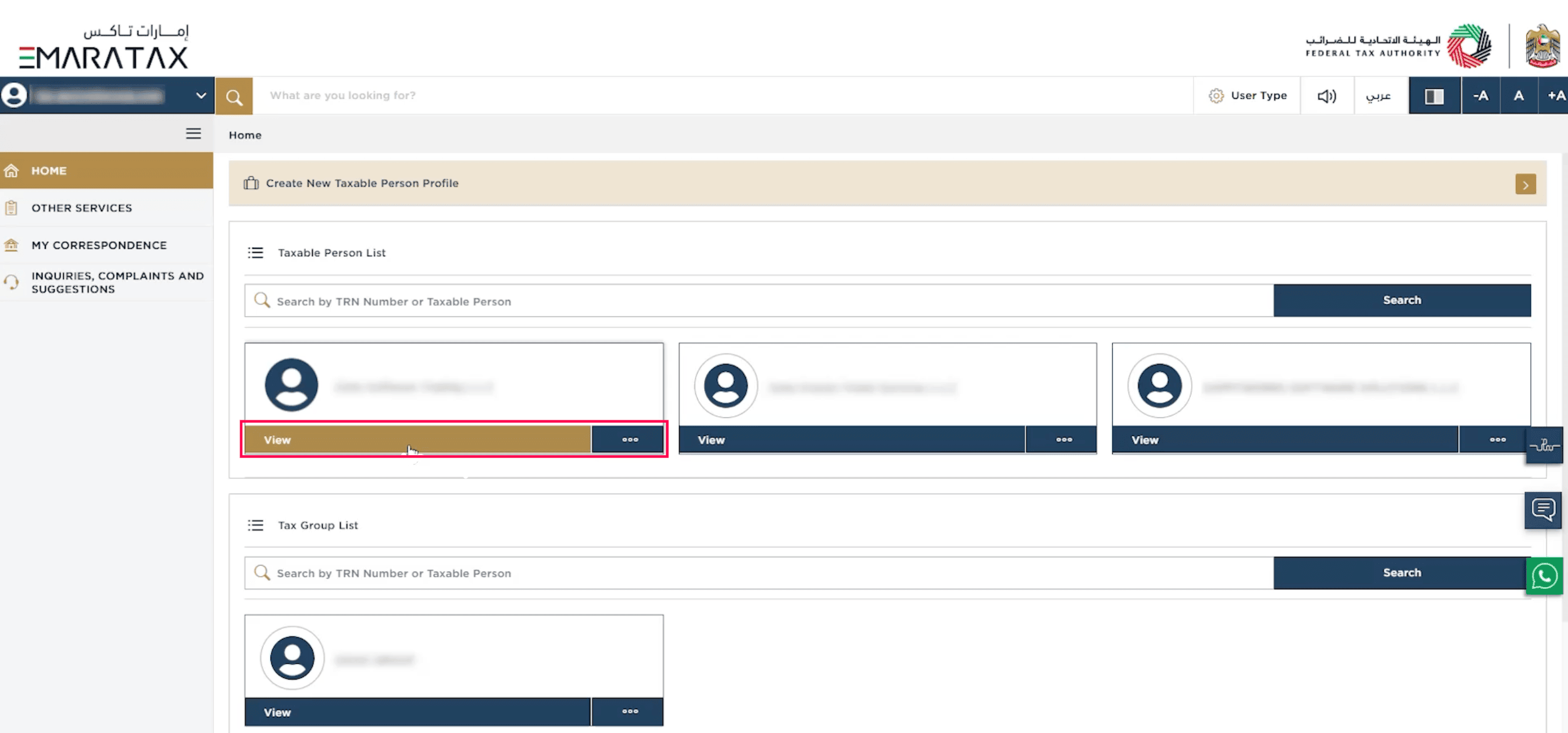
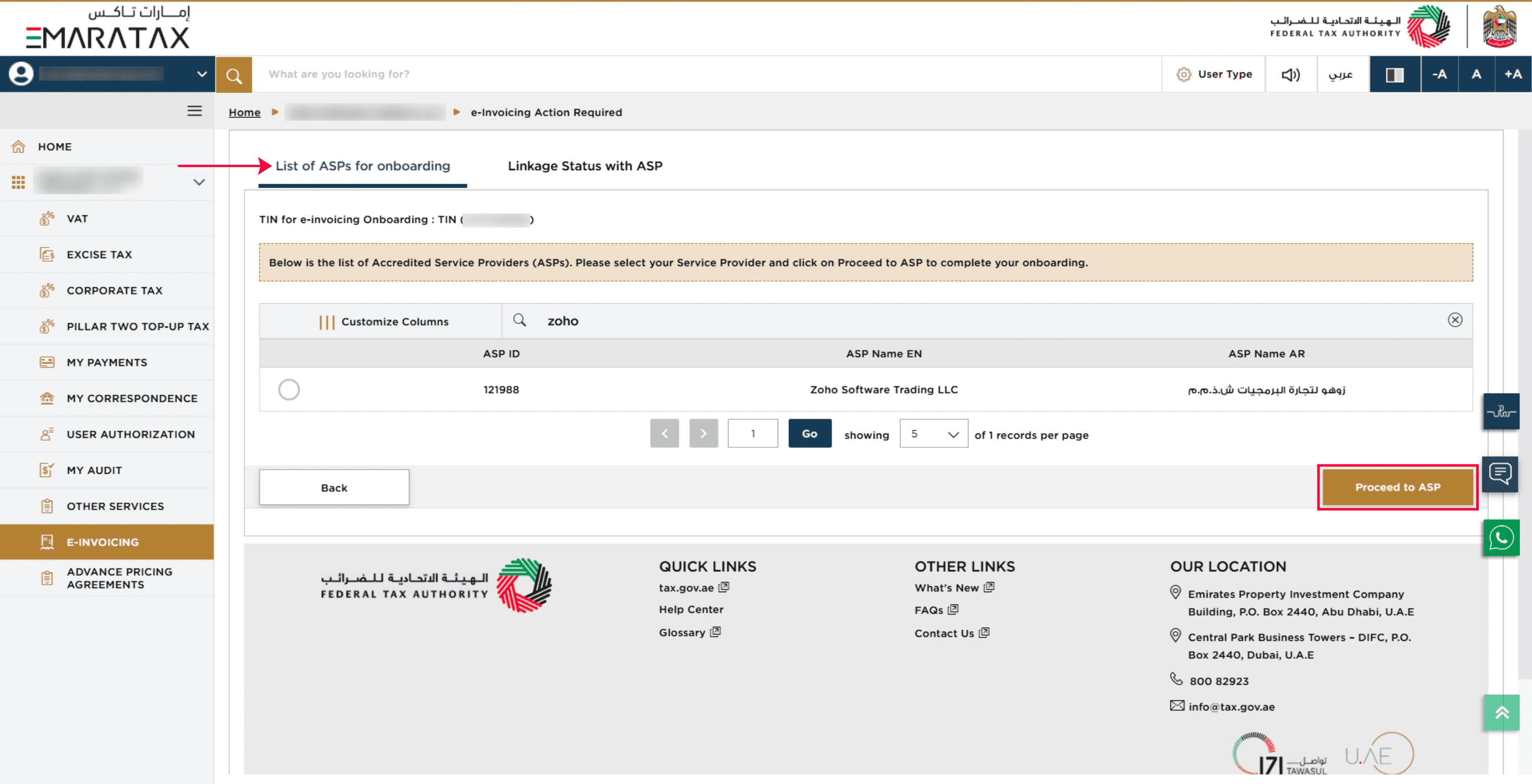
Step 5: Select Zoho Software Trading LLC as your ASP
In the provider list, search for Zoho, select Zoho Software Trading LLC and proceed to the ASP. Use the provider’s listed legal name to identify it; do not select a provider solely because its name looks familiar.
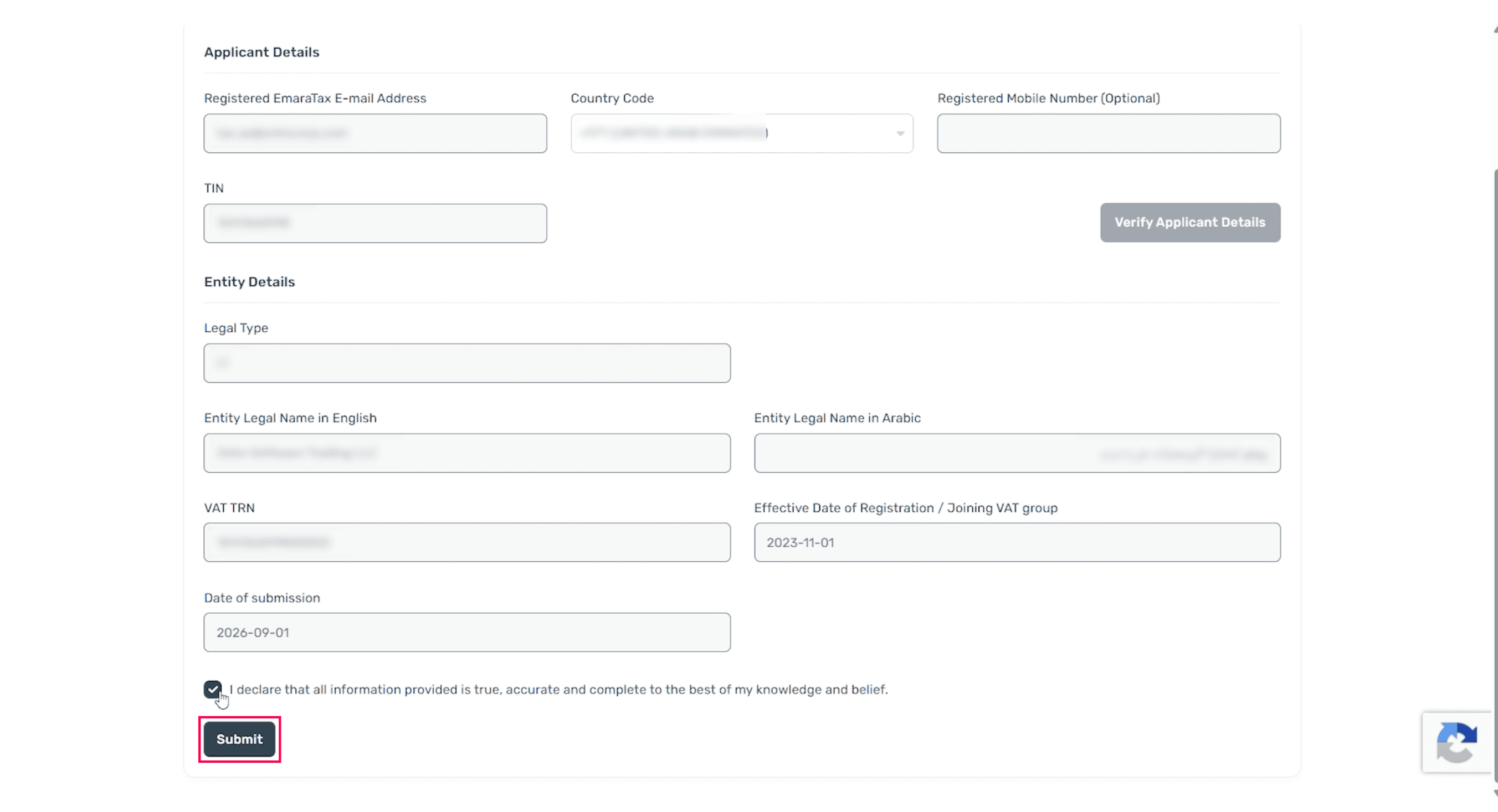
Step 6: Verify applicant and entity details
The linking screen asks for applicant information, including the registered EmaraTax email and TIN. Review the country code and registered mobile number where applicable. Verify the applicant details, then check the entity information, including its legal name.
Confirm the declaration only after checking the information and submit the request. Allow the onboarding checks to complete. In the webinar, the presenter returns to the portal’s linkage tab to show that Zoho has been linked successfully.
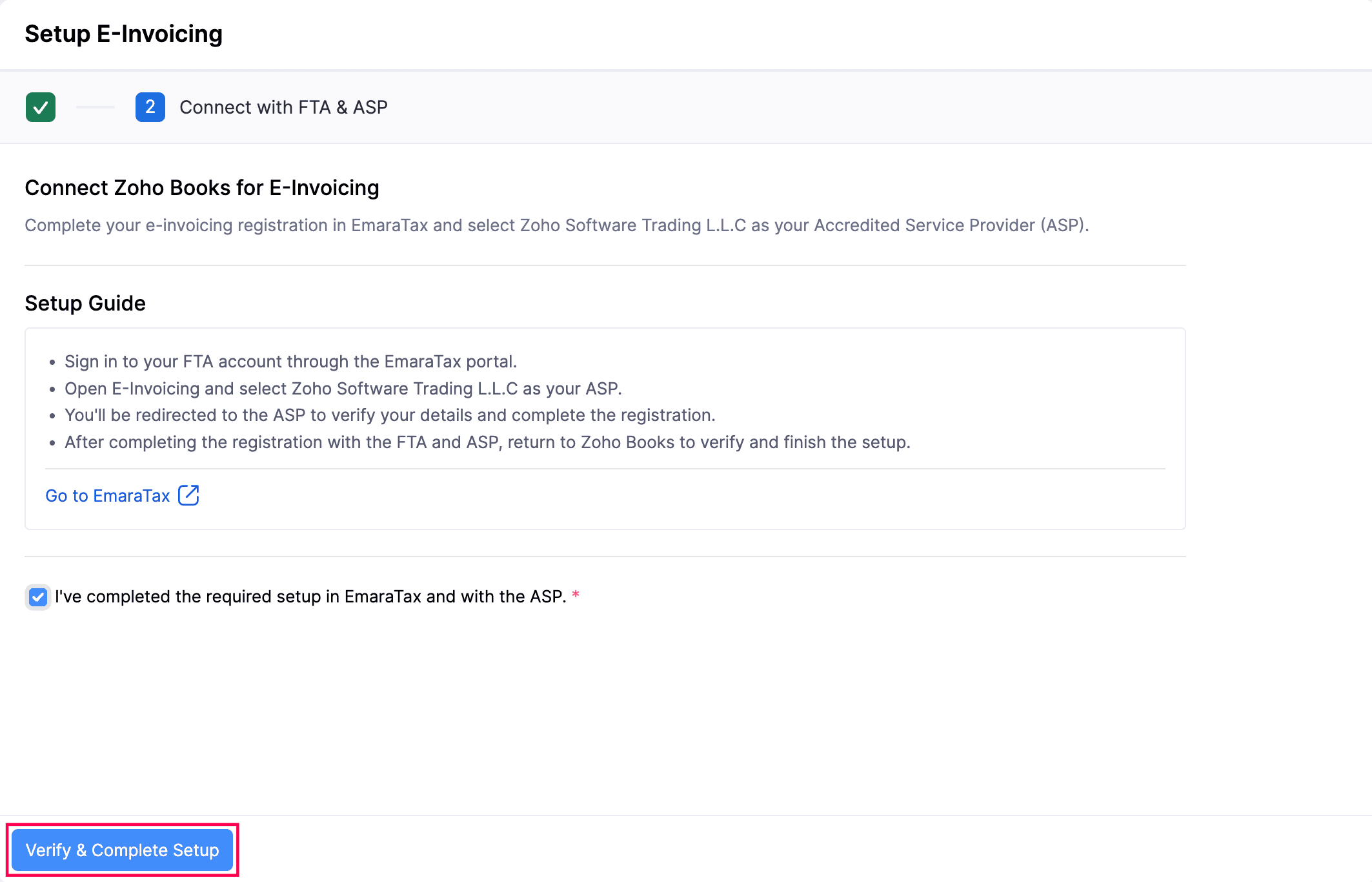
Step 7: Finish the connection in Zoho Books
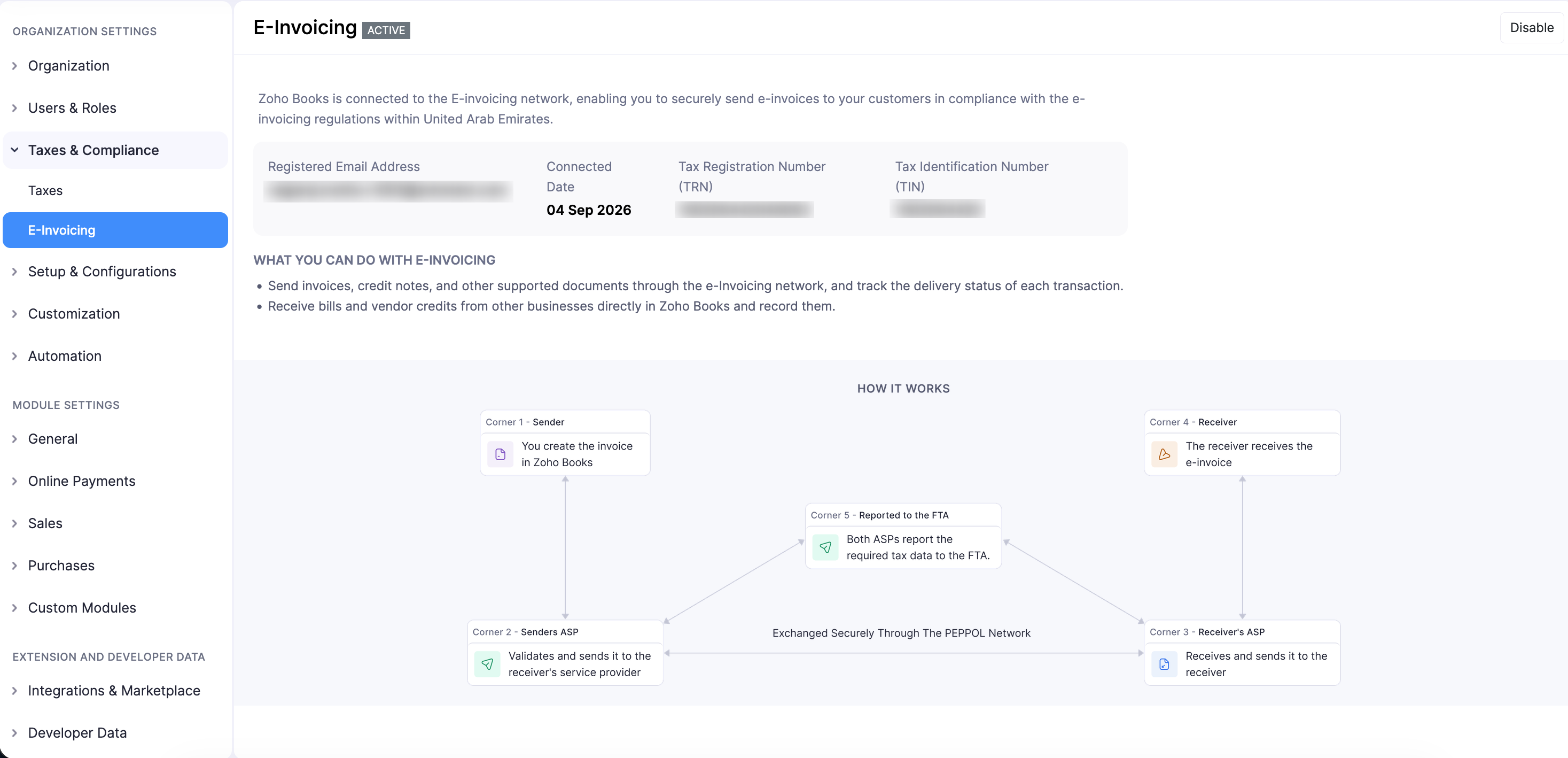
Return to the Zoho setup page after completing portal onboarding. Use the completion control to verify the connection. The official reference screen shows the button labelled Verify & Complete Setup.
Step 8: Check that e-invoicing is active
Review the active connection screen and the displayed registration details. The correct entity, identifiers and active status are the starting point for using the feature. Also prepare the master data and test the finance workflow before relying on the connection for everyday transactions.
Prepare customer, vendor and item records for eInvoicing
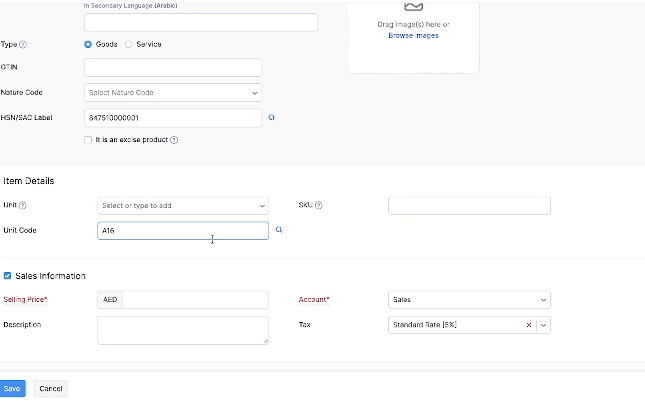
Step 9: Update the item master
Open Items and create or edit the relevant records. The webinar item form displays Goods or Service, GTIN, Nature Code, HSN/SAC, Unit and Unit Code, alongside price, account and tax fields.
Use the lookup tools to select applicable classification and unit information. A code copied from the demonstration is not a universal code for your products. Complete the fields that apply to the actual goods or services and review their tax treatment.
When an item is selected on an invoice, prepared master data reduces the need to enter the same details repeatedly. It also gives the reviewer a consistent starting point for checking transaction lines.
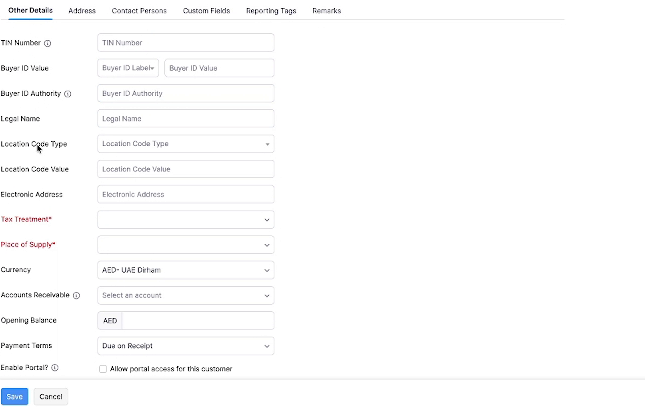
Step 10: Complete customer and vendor identities
In the customer record, check company and display names, relevant legal information, addresses, email and telephone details. The demonstration’s Other Details tab exposes TIN Number, Buyer ID Value, Buyer ID Authority, Legal Name, Location Code Type, Location Code Value and Electronic Address.
The form also includes Tax Treatment and Place of Supply. Populate applicable fields using information obtained from the customer or its provider. Do not assume that an ordinary email address and a network electronic address are interchangeable.
Prepare vendor records with the same care. The presence of a field on the form does not establish that the same value or requirement applies to every domestic, overseas or special-case transaction.
Step 11: Check customer network eligibility
Open a customer profile and inspect PEPPOL Status. The webinar shows a Check Status option and an Eligible result for the example customer. Review eligibility before deciding how the invoice will be delivered.
If a buyer is not connected, investigate its status and the applicable delivery and reporting process. Do not infer that a buyer’s missing connection automatically removes the supplier’s obligations.
How to send an e-invoice in Zoho Books
Step 12: Create and review a draft invoice
Open Sales > Invoices, choose the customer and select the prepared items. Review quantities, unit prices, classifications, unit codes, dates and payment terms. Check line taxes, discounts, additional charges and the total.
The webinar tax menu includes standard rate, zero rate, exempt and out-of-scope options. Use the appropriate treatment for the underlying supply. The example invoice has a net amount of AED 3,900, VAT of AED 195 and a total of AED 4,095; those figures illustrate the workflow rather than prescribing your pricing or tax treatment.
Review Expected Payment Mode before saving. The presenter explains that this describes the expected method; the actual receipt can later use another method. Inspect the generated invoice representation and check names in the required languages.
Step 13: Submit the reviewed invoice through Peppol
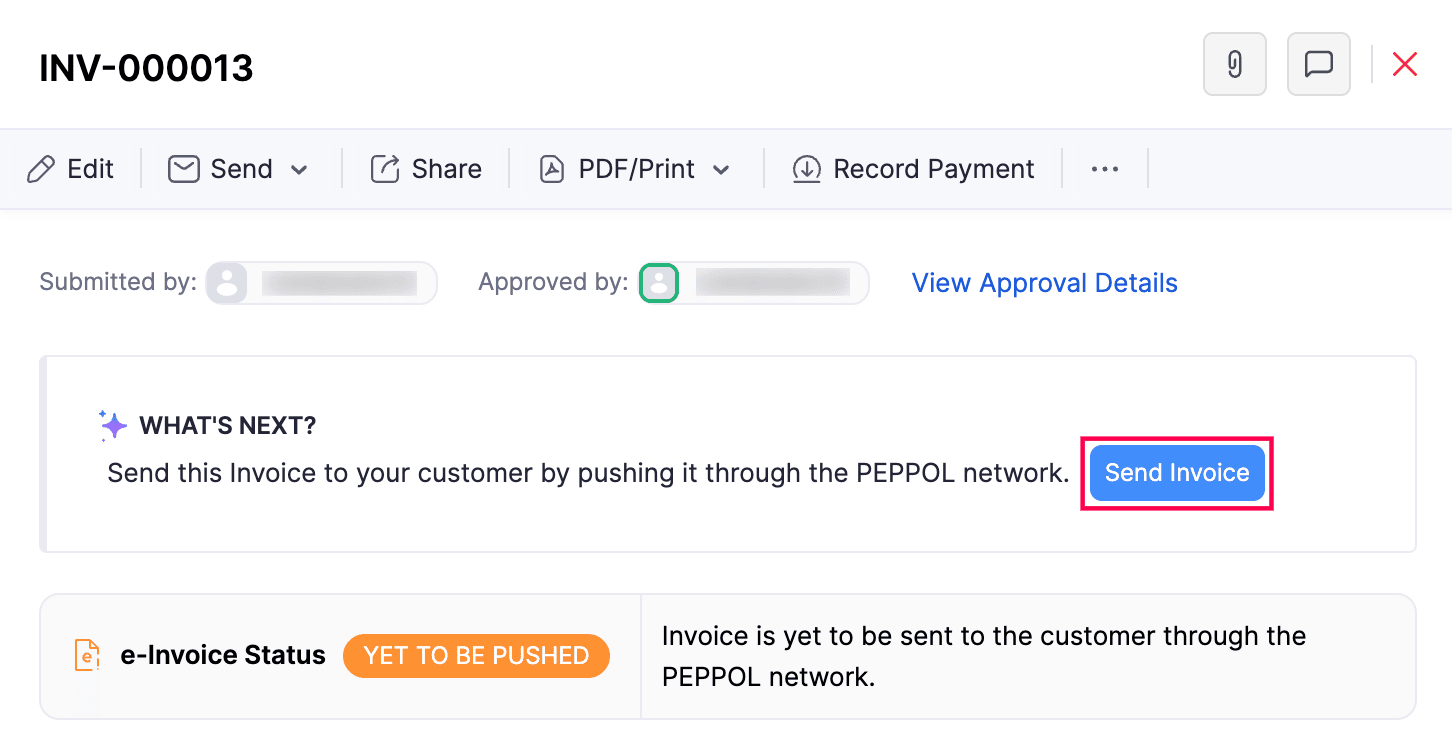
After reviewing the draft, use the Peppol submission action. The current official reference shows Send Invoice in the next-action area. The webinar also demonstrates the separate electronic submission indicator and the ordinary invoice document status.
Step 14: Check status and retain the UUID
In the webinar, the initial indicator changes to Push Initiated. That is an intermediate state. Check the final result rather than assuming that pressing a button means the invoice has completed the exchange.
| E-invoice state | Finance-team action |
|---|---|
| Yet To Be Pushed | Review whether the transaction is ready for submission. |
| Push Initiated | Allow processing to complete and check the result. |
| Pushed | Retain the UUID and transaction reference. |
| Failed | Read the error and resolve the relevant issue before retrying. |
Draft and e-invoice status are different. The webinar shows a document labelled Draft while electronic submission has been initiated. Review both tracks when investigating what has happened to a transaction.
Step 15: Review incoming bills and vendor credits
Open Purchases > Bills to review received supplier invoices. In the demonstration, the invoice sent from one organisation appears as a draft bill in the receiving organisation with the matching reference and amount.
Check the supplier, lines, tax and totals before moving the transaction into the normal payable process. Network receipt is not the same as internal approval or payment. Define who reviews the incoming drafts and how differences are investigated.
Step 16: Monitor the e-invoice report
Open the E-invoice Report in Reports. The webinar screen includes period and entity filters, Run Report and Export controls. Its columns show transaction number, type, contact, e-invoice status and UUID.
Use this report as a practical exception list: identify pending transactions, investigate failures and retain evidence of successful submissions. Keep the review schedule proportionate to transaction volume and the organisation’s operating requirements.
Common Zoho Books eInvoicing problems and what to check
The checks below are practical investigation points, not promises that a particular error always has one cause.
| Problem | What to check first |
|---|---|
| The connection is not active | Correct taxable person, completed provider linkage, registered information and Zoho completion step. |
| Missing or incorrect buyer information | Customer legal identity, applicable tax identifiers, address and network routing data. |
| Item information is incomplete | Goods/service classification, applicable HSN/SAC, selling unit and unit code. |
| Submission remains initiated or fails | Final e-invoice status, displayed validation error and transaction reference; involve support where required. |
| Arabic names do not appear as expected | The relevant secondary-language customer and item name fields. |
| A received invoice appears as Draft | Whether the receiving team’s review and approval process has been completed. |
Zoho’s documentation states that successfully pushed invoice data is locked and that corrections can be made through a credit note. Follow the appropriate correction workflow instead of trying to overwrite exchanged invoice data. See the official UAE e-invoicing help page for the current product behaviour.
Zoho Books eInvoicing pricing: what should you budget for?
Budget for the accounting subscription, eligible exchange activity, data preparation, testing and staff training. The webinar presents a transaction-pack model and explains that relevant vendor bills and credit notes can count alongside outbound invoices.
Confirm current plan eligibility, free allocations, pack prices and expiry terms directly with Zoho before purchase. A price shown in a webinar or older screenshot should not be treated as a current quotation. Estimate the total transaction flow rather than counting only sales invoices.
Zoho Books UAE eInvoicing go-live checklist
- Confirm the transaction scope, revenue category and applicable deadlines.
- Verify company records, identifiers and authorised EmaraTax access.
- Confirm product availability and current subscription terms.
- Complete company verification in Zoho Books.
- Link the correct entity to Zoho through EmaraTax.
- Complete and check the active connection in Zoho Books.
- Review customer, vendor, classification and unit data.
- Review a controlled, appropriate transaction before submission.
- Check the successful status, UUID and buyer receipt.
- Establish incoming-bill review, correction and exception-monitoring responsibilities.
- Train the users who create, review and submit transactions.
Use an appropriate test or pilot process. Do not create artificial live sales merely to see whether a production connection works.
Frequently asked questions
How do I enable UAE eInvoicing in Zoho Books?
Start in Settings > Taxes & Compliance > E-Invoicing. Verify the company information, complete the EmaraTax provider connection, return to Zoho to finish setup, and prepare the customer and item records before sending transactions.
Which ASP name should I select in EmaraTax?
Select Zoho Software Trading LLC when appointing Zoho as the provider. Check the chosen legal entity before confirming the connection.
Does a PDF invoice count as an e-invoice?
A PDF preview is a readable representation. The workflow described here relies on structured PINT-AE data and electronic exchange. An ordinary emailed PDF alone does not demonstrate completion of that process.
Why is an invoice Draft while its e-invoice push has started?
The document status and electronic exchange status are separate. The webinar shows this combination. Review the e-invoice status and transaction identifiers to understand the submission result.
What should I do when the e-invoice status is Failed?
Inspect the displayed error and underlying customer, item and transaction information. Correct the relevant issue and follow the retry process. Escalate unresolved errors with the transaction reference and available identifiers.
Where can I find received supplier e-invoices?
Check the Purchases area for bills and vendor credits. Review the received draft’s details before following the organisation’s approval and payable process.
Is a connected customer required for every scenario?
Check the customer’s eligibility and the relevant legal and delivery requirements. Overseas buyers and buyers without a network connection may need a different delivery process; do not assume that this removes reporting requirements.
Can an accountant complete everything on our behalf?
An adviser can help prepare data, explain the workflow and support testing. The business must manage its authorised account access, approvals, provider appointment and responsibilities for transaction accuracy.
Download the illustrated Zoho Books eInvoicing guide
The 42-page guide includes screenshots, 23 illustrated workflow steps and a readiness checklist. Use it when preparing company details, master data and the invoice review process.
Download the detailed Zoho Books UAE eInvoicing guide (PDF)
Need help with Zoho Books UAE eInvoicing?
Saif Chartered Accountants supports businesses with accounting, Zoho Books implementation and finance-team training. Discuss your company setup, customer and item data, and the process for reviewing electronic invoices with our team.
Explore our Zoho Books implementation services, accounting services in Dubai and wider UAE e-invoicing compliance guide.
Contact Saif Chartered Accountants: +971 4 451 8600 · info@saifaudit.com
1106, The Prism Tower, Business Bay, Dubai, UAE.
Authority and verification
Official sources
- UAE Ministry of FinanceMinisterial Decision No. 197 of 2026: e-invoicing amendmentsChecked 19 October 2026
- UAE Ministry of FinanceAmendments to e-invoicing system decisionsChecked 19 October 2026
- UAE Ministry of FinanceMinisterial Decision No. 244 of 2025 on implementation of the electronic invoicing systemChecked 19 October 2026
- ZohoZoho Books UAE e-invoicing helpChecked 19 October 2026